
Open Setclipper the first time.
Setclipper is shared directly by us and has not yet been notarized by Apple, so your Mac asks you to confirm once. It takes about a minute. Only open a copy you downloaded from setclipper.com.
Updates. Setclipper for Mac checks for updates automatically and installs them when you quit the app. In recent versions you can turn this off in Settings > General > Updates; earlier versions do not have this setting. To check now, choose SetClipper > Check for Updates…
Requires an Apple Silicon Mac (M1 or newer) on macOS 14 or newer. Screens vary slightly between macOS versions.
1. Put Setclipper in Applications
Open the downloaded file and drag Setclipper into your Applications folder. Then open Setclipper.
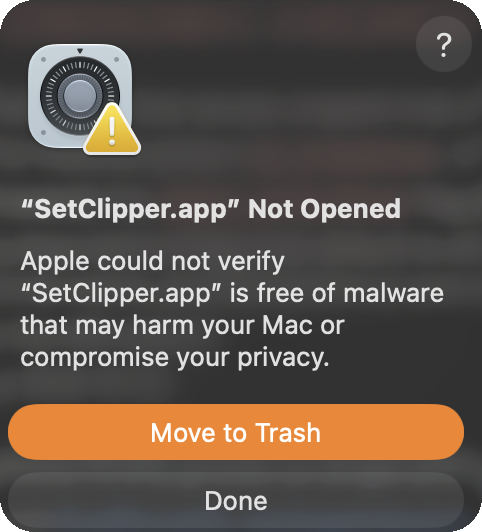
2. Click Done, not Move to Trash
Your Mac says SetClipper was “Not Opened”. Click Done (not Move to Trash).
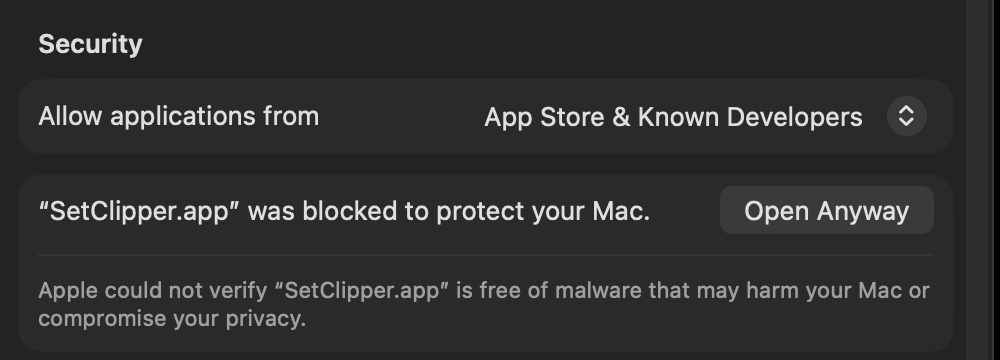
3. Choose Open Anyway
Open System Settings, then Privacy & Security. Scroll down to Security. Next to "SetClipper.app was blocked to protect your Mac", click Open Anyway. The button appears only after your Mac has blocked the app, so try opening Setclipper first.
4. Enter your Mac password
Your Mac asks you to confirm with your Mac password (or Touch ID). Enter it, then open Setclipper again. This is the password you use to sign in to your Mac. Setclipper never sees it.
Illustration, not a screenshot. The wording differs between macOS versions.
Questions
Why does my Mac say this?
Apple checks apps that are notarized. Setclipper has not been notarized yet, so your Mac treats it as an app from outside the Mac App Store and asks you to confirm.
Should I click Open Anyway?
You are choosing to open an app Apple has not checked. Only do it for a copy you downloaded from setclipper.com.
I do not see Open Anyway.
The button appears in Privacy & Security only after your Mac has blocked the app. Open Setclipper once, click Done, then check System Settings again.
Open Anyway does not appear. What else can I try?
First open Setclipper once, click Done, and look again in Privacy & Security. If the button still does not appear, there is one more option for advanced users. This removes the Mac's download check for this app only. Only do this for a copy you downloaded from setclipper.com. In Terminal, run:
xattr -dr com.apple.quarantine "/Applications/SetClipper.app"
Then open Setclipper again.
Will I have to do this every time?
No. You confirm once for the copy you installed. If you download a new copy, your Mac may ask again. The latest version is always on the Downloads page.
Still stuck?
Email info@setclipper.com and tell us your macOS version.